


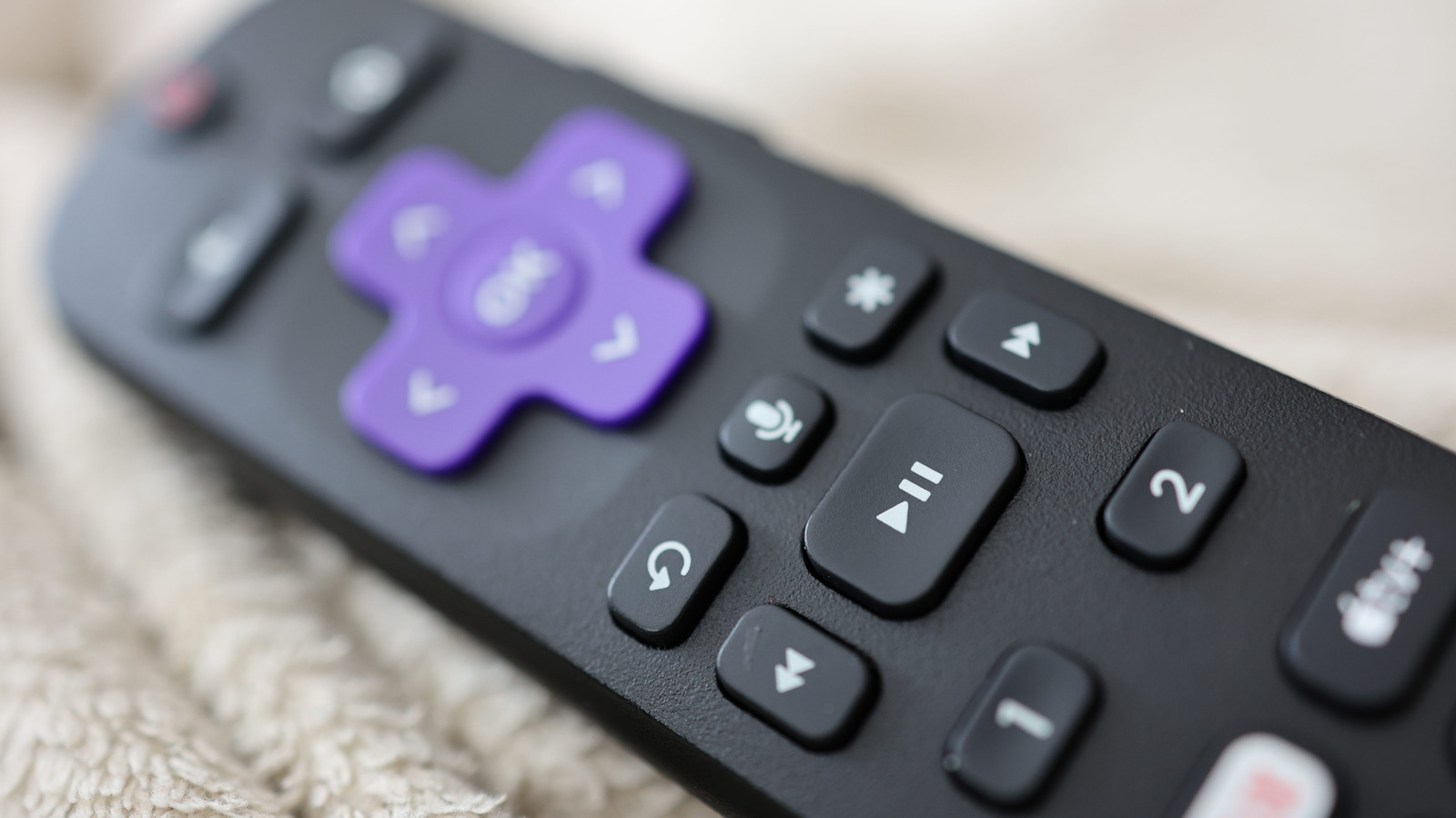
Unlocking the Functionality of the Roku Remote’s Star Button
Photo by Joshua Westbrook/Getty Images
The Roku remote is known for its intuitive design, with each button distinctly labeled for easy access—except for one: the star button that sits above the fast forward button. If you’ve ever wondered about its purpose while navigating your Roku device, you’re not alone. This article explores the various functionalities of the star button, which can enhance your overall Roku experience.
Exploring Star Button Functions
The functionality of the star button varies depending on where you are within the Roku interface. Here’s a detailed breakdown based on different contexts:
From the Home Screen
On the Roku home screen, the star button serves multiple purposes:
- In the Quick Access section, pressing the star button allows you to remove an app from this list.
- In the general apps list, the star button offers expanded options, including:
- Viewing the app’s version and build number.
- Rearranging the channel’s position.
- Rating the app and providing feedback.
- Checking for app updates.
- If you’re using a Roku TV and highlight an external device, such as a gaming console, you can rename that device through the star button as well.
While Streaming Content
When you’re actively watching a show or movie, the star button becomes a powerful tool. Pressing it opens a sidebar filled with various viewing options, which may include:
- Improving image quality settings.
- Setting a sleep timer.
- Accessing closed captioning.
- Changing volume modes.
The availability of these features may differ based on the app you are using, especially between Roku TVs and streaming boxes.
Accessibility Features
For users who benefit from accessibility options, several Roku devices come with a text-to-speech screen reader feature. This feature, previously known as the Audio Guide, is designed to assist those with visual impairments. The star button can be used to activate this feature easily:
- To enable the screen reader, quickly press the star button four times in succession.
- For adjustments on speech rate and volume, navigate to the Accessibility settings.
This accessibility option is supported by a range of Roku devices, including:
- Roku TV
- Roku Streambar and Streambar Pro
- Roku Smart Soundbar
- Roku Express and Express+
- Roku Streaming Stick models
- Roku Ultra and Ultra LT
Note that the screen reader feature is currently available only in the United States.
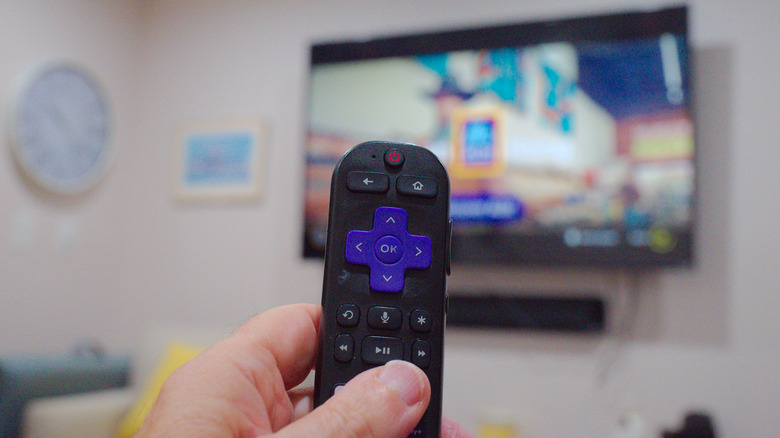
Photo by Delbert Harper/Getty Images
